Teams and modes
A team is a few agents, each with a role, taking turns in a way you choose. The lead agent puts one together for each question from your templates; you can change it whenever you like.
How the lead agent picks a team
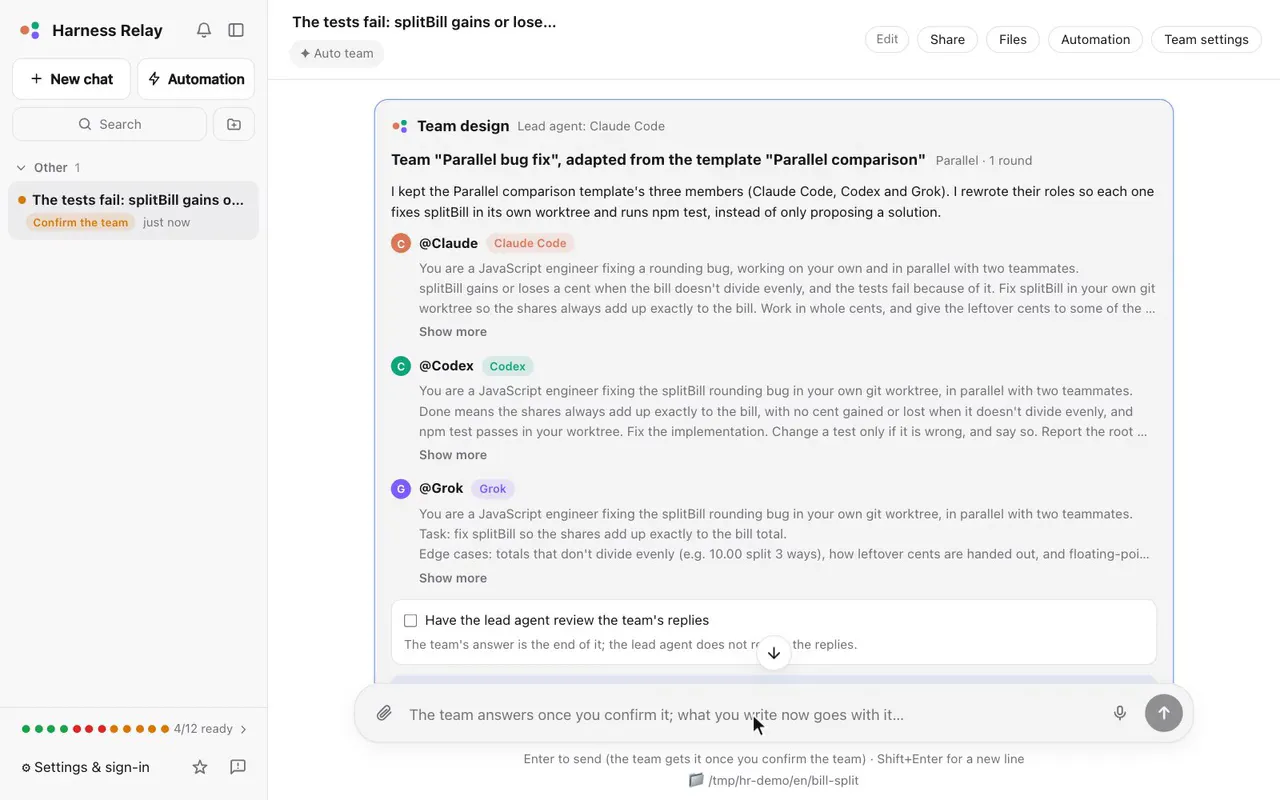
For each new question, the lead agent reads the question, the conversation so far, the current team and all your templates. Then it keeps the current team, uses a template as it is, adapts one (adding or dropping a member, rewriting roles, changing the mode), or designs a new team, and says why on the Team design card.
It staffs the team by what each of your agents can do: their models, and the tools each one has. A member that has to search the web goes on an agent that can, and hard reasoning gets a stronger model or effort. It writes each role the way that member's model takes instructions best; roles in your templates stay as you wrote them.
-
Not every message gets a new team. An answer to an agent's question, a message that
@mentionsmembers, Continue and an automation's message go to the team you have. - Members who stay on remember. A member who stays (same name, same coding agent) keeps what it learned; a new member reads the conversation from the start.
- The folder and the permission stay yours. The lead agent cannot change the working directory or the permission.
- Only agents that are ready. A member on an agent that is not signed in (or, for an open-source agent, has no model backend) is moved to the lead agent's own agent.
You choose which agent is the lead agent, and its model, in Settings: a small, fast model is usually enough. To let the team answer immediately, choose Start answering right away in New chat; the card still shows what it chose and why. Confirming a team
Templates
Templates are where you design teams, and the lead agent picks from them. Five come built in:
| Template | Mode and team |
|---|---|
| Architect → Builder → Reviewer | Relay: Claude plans, Codex builds, Grok reviews, handing off with @mentions. |
| Three-way debate | Roundtable, two rounds: a proposer, a pragmatist and a skeptic. For design and technology choices. |
| Parallel comparison | Parallel: Claude, Codex and Grok each solve the same problem on their own, for easy comparison. |
| General-question panel | Roundtable: an analyst, a critic and a synthesizer. For any question, not just code. |
| Pair programming + QA | Roundtable: the navigator directs, the driver writes the code, QA writes tests and checks. |
On the New chat page, open Manage team templates. Click one to open it, or New template to start from a blank team. A template has a name, a Description (the lead agent reads it when it picks a template, so say what the team is good for), its members, and how they take turns.
- Your own templates are saved with Save template, and deleted with their × button (Delete template).
- Built-in templates cannot be changed, but once you change something, Save as my template keeps your copy.
- Save as template on a team design card keeps a team the lead agent designed or adapted.
Or have the lead agent write it: under Have the lead agent write it, at the top of the dialog, say what the team is for, or how to change it, such as "a team of three to review pull requests: one finds bugs, one checks security, one sums up", and click Write it. It writes the members, their roles, the name and the description in the dialog, and lists what changed; Undo puts the template back. Nothing is kept until you press Save template.
A template has no working directory or permission: those belong to each conversation. A member on an agent that cannot run on this computer is moved to one that can when you open the template, and the dialog says so.
Team members
Each member is a card in the team, with these fields:
- Agent name
-
The name you
@mention, unique in the team: letters, digits,_and-(Chinese characters work too). - Coding agent
- Which agent runs this member. Several members can use the same one, with different roles.
- Account
- Which of the agent's accounts it runs on, shown once the agent has more than one account.
- Position / role
- The most important field: what this member owns, what it should not do, and whom it hands off to. See Writing good roles.
- Model and Reasoning effort
- Pick one of the agent's models, or Custom… to type one. Default uses the default from Settings, or the agent's own.
- Limit
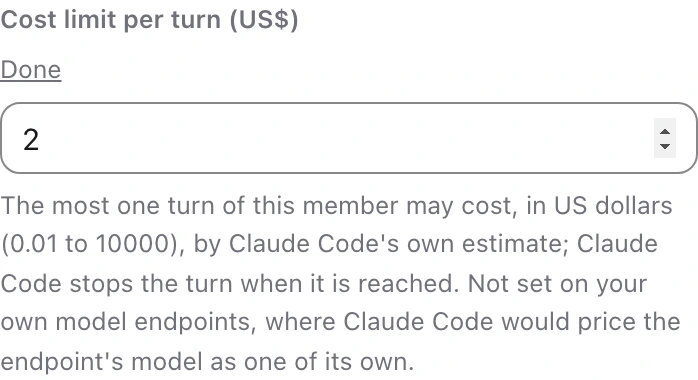
- For Claude Code (a cost per turn, in US dollars), Copilot (AI credits for its whole session), Goose (model calls per turn) and OpenCode (steps per turn): the most this member may use, which its agent keeps to by itself. Empty is no limit.
- Tools
- What this member gets from your tool library. Tools
The arrows move a member up or down: the order is the speaking order, and in relay mode the first member leads. Add members with the buttons named after each coding agent; a team has up to eight members.
The three modes
The mode is how the members take turns. Each template has one, and the lead agent picks one for each team.
| Mode | How they take turns | Good for |
|---|---|---|
| Roundtable | One after another, in order; each sees what the earlier ones said. You set the Rounds (1 to 5); the run ends early when everyone in a round has nothing to add. | Discussions, reviews, refining an answer. |
| Parallel | All at the same time, each on its own. In later rounds they see the previous round's answers. | Comparing approaches, independent opinions. |
| Relay |
One at a time. A member hands off by @mentioning a teammate; if it mentions nobody, the
floor comes back to you. The Relay limit caps the hand-offs per message (1 to 30).
|
Pipelines: plan, then build, then review. |
In edit mode, roundtable and relay members change your working directory in turn, while in parallel mode each member works in a copy of its own, and you choose whose result to apply. Reviewing and applying changes
Team checks
Team checks give the whole team one set of rules in Edit and Full access chats. Harness Relay checks the files on disk and the commits, and runs the commands itself. In Team settings, open Advanced settings to edit the rules. In New chat or New automation, open Workspace and chat settings first. In a template, open Team checks.
Configure checks and hooks
- Protected paths
-
Files the team may not create, change or delete, one per line, written as in
.gitignore:.env,*.pem,secrets/. Files git ignores are checked too. Most agents also refuse to write them in the first place: see What the sandboxes do. - Commit format
- A regular expression every commit's subject must match; Use Conventional Commits fills one in. Checked in roundtable and relay mode.
- Commands
-
Commands that must succeed, such as
npm testornpm run lint(Add a command), each with its folder and a time limit; Try it runs one now, to see that it works. Below full access they run in Harness Relay's own sandbox, with no network. They do not run on native Windows yet. - The app the team builds must open in the preview
-
Every app a turn adds or changes must run in the app preview: from a
Dockerfileor compose file, as an npm project with its lockfile and a script, or as an index page. Harness Relay reads the files and builds nothing. The agents are told to give a server or a terminal program aDockerfileand to link it in their reply. - Send what did not pass back to the team to fix
- A result that fails goes back by itself to the member whose turn broke it, in a message marked Relay's fix 1/3, at most three times in a row. Then the card waits for you. It is not sent while the team waits for your answer or a message you wrote waits, after ■ Stop, or in an automation nobody watched.
- Hooks
-
Commands that run around each member's own tool calls as they happen (Add a hook): Before a
command, a file change or every call, where a hook that does not succeed refuses the call and its output is the
reason the agent gets; or After one, where its output goes back to the agent to fix. A hook reads the call
from variables such as
RELAY_HOOK_COMMANDandRELAY_HOOK_FILES, and the script it names in your folder is protected like a protected path. Hooks run on macOS and Linux for supported tool calls in Claude Code, Codex, Copilot, Muse Code and Pi. The reply records when a member runs without team hooks.
Or have the lead agent write them: under Have the lead agent write the rules, at the top of the editor, say
what the team must not break, such as "run the tests and the linter after every change, and never touch .env",
and click Write the rules. For a chat it first reads the project, read-only (its package.json
scripts, CI workflows, test and lint settings, contributing guide), so that the commands it proposes are there;
for a template or the default list, it writes rules for the kind of project you describe. Nothing runs and
nothing is saved: review the rules, try a command with Try it, then save them.
Review check results
The agents are told the rules from the start. In a chat that can change files, a Team checks card after the replies says how each rule went: Passed, Failed (with the files, commits or app, and whose turn it was), Could not run (never a pass; the card says why) or Not applicable. A run that changed nothing the rules cover gets no card. While the latest result fails:
- Each member's next turn is shown what failed, and asked to fix it.
- What you sent while the team replied waits in the tray; Send anyway sends it.
- Check again checks once more: a file put back passes. Ask a member to fix it gives one member a turn to fix it. Skip stops asking the agents; the failure stays on record and never becomes a pass.
In parallel mode, Harness Relay checks a member's result before applying it. It compares the files against the protected paths and runs the commands on a copy of your folder with the result applied. If the check fails, you can fix the result and retry, or choose Apply anyway. If the result changes settings the commands read, review them and choose Confirm, run the commands and apply if they pass. Reviewing and applying changes
In Settings → Apps and tools → Tool library, Hooks and Default team checks hold the rules every new chat and automation starts with. When an automation runs with nobody watching, a failure is that run's result, and nothing waits for you.
Team checks report and undo nothing: what an agent changed stays changed until a member or you put it back. To keep a command from doing harm as it runs, use a permission below full access. And a command checks the code as it is: a test an agent turned off still passes.
Change the team mid-chat
Click Team settings in the chat's header to change roles, models, effort, the mode, the permission or the working directory. Changes apply from the next turn. While the team is replying, they cannot be saved (except the lead review and steering boxes).
Send messages into running turns while the team works, off by default, sends a message you write while the team works straight into the running turn of the member speaking, where its agent can take one (Claude Code, Codex, Grok, Antigravity, Goose and Pi); otherwise it waits for the next turn as usual. While the team works
Or let the lead agent do it: say what you want under Ask the lead agent at the top of Team settings, such as "add a tester on Codex", "switch to relay" or "have the Reviewer focus on security", and click Ask the lead agent. It changes the team shown below and notes what it changed and why; Undo puts it back, and Save uses it. It cannot change the permission: it says so instead.
A member you move to another coding agent starts a new session of that agent, which first reads the conversation so far.
Writing good roles
- Give each member a distinct job, and say what it should not do ("don't edit files yourself").
-
In relay mode, say whom to hand off to and when ("when done, list the files you changed and
@Reviewer"). - Give the final say to one member ("you speak last and give the user the final answer").
- To compare several solutions, use parallel mode with edit permission: each member gets its own copy, and you apply the one you like. For plan, build, review, use relay, so each one builds on the last one's changes.
- Save the teams that work well as templates, and give each template a description: the lead agent reads it when it picks one.