Connect your agents
Harness Relay drives the coding agents you already use, signed in as you are. Sign each one in once under Settings & sign-in, or give the open-source agents an API key or a model server of your own, and they are ready for any team.
Settings & sign-in
Click Settings & sign-in at the foot of the sidebar. Available AI assistants lists the assistants ready to use. Open Connect another assistant to see who needs installation, sign-in or a model backend. Choose an assistant to open its setup. Model connections comes before the agents, then each agent has a card. A card shows the agent's version, or, when Harness Relay does not find it on your computer, a button that installs it. Each of its accounts has a box of its own, with its sign-in, its API key and its default model.
The dots at the bottom of the sidebar show at a glance which agents are ready:
| Dot | Means |
|---|---|
| Green | Ready to use. |
| Orange | Not signed in yet; for an open-source agent, no model backend yet. |
| Red | The agent's program was not found on this computer. |
Beside them, how many are ready (4/12 ready). Point at a dot to see its agent's name, or click it to open that agent's settings.
Sign in to an agent
On the agent's card, pick a way to sign in and click Sign in. Harness Relay runs the agent's own sign-in and shows you what to do:
| Agent | How to sign in |
|---|---|
| Claude Code | With your Claude subscription or Anthropic Console: open the link, allow it, then paste the code the page shows into the box and click Submit. |
| Codex | With ChatGPT, by a device code: open the link, sign in to ChatGPT and enter the one-time code shown (click it to copy). Or sign in in a browser, which opens on this computer. |
| Grok | With xAI, by a device code or in the browser: open the link and confirm the code. |
| Cursor | With your Cursor account: open the link in a browser on any device, sign in to Cursor and allow it. |
| Antigravity | With your Google account: open the link on any device and sign in to Google, then paste the code the page shows into the box and click Submit. |
| Copilot | With your GitHub account: open github.com/login/device on any device, enter the code shown (click it to copy) and authorize it. |
| Muse Code | With your Meta account: open the link on any device, sign in to your Meta account and check that the page shows the same code. |
The panel turns green with Signed in ✓ when the agent is done. If something goes wrong, open CLI output to see what the agent said. Check again at the top of Settings looks at every agent anew, for example after you signed one in in a terminal.
It is the agent's own sign-in, the same one you use in a terminal. So Sign out signs the agent out on this computer everywhere, and a new Codex sign-in first signs the current Codex account out (the page asks first).
Or use an API key
Instead of signing in, each of the seven takes a key under API key in its account's box. Claude Code's, Codex's, Grok's, Antigravity's and Muse Code's are billed by use, by the agent's maker, rather than counted against a subscription:
- Claude Code: an Anthropic API key. It takes precedence over your Claude subscription.
- Codex: an OpenAI API key. Codex keeps it, and it replaces your ChatGPT sign-in.
- Grok: an xAI API key.
- Cursor: a Cursor API key, for Harness Relay's runs only; your own Cursor sign-in stays as it was.
- Antigravity: a Gemini API key. Antigravity then runs on the Gemini API instead of your Google sign-in.
- Copilot: a fine-grained GitHub token with the “Copilot Requests” permission (classic tokens don't work). It uses that GitHub account's plan.
- Muse Code: a Meta API key.
Harness Relay keeps the other keys in your system's credential store (the macOS Keychain, Windows Credential Manager, or your keyring on Linux), and only ever shows them masked.
Model connections
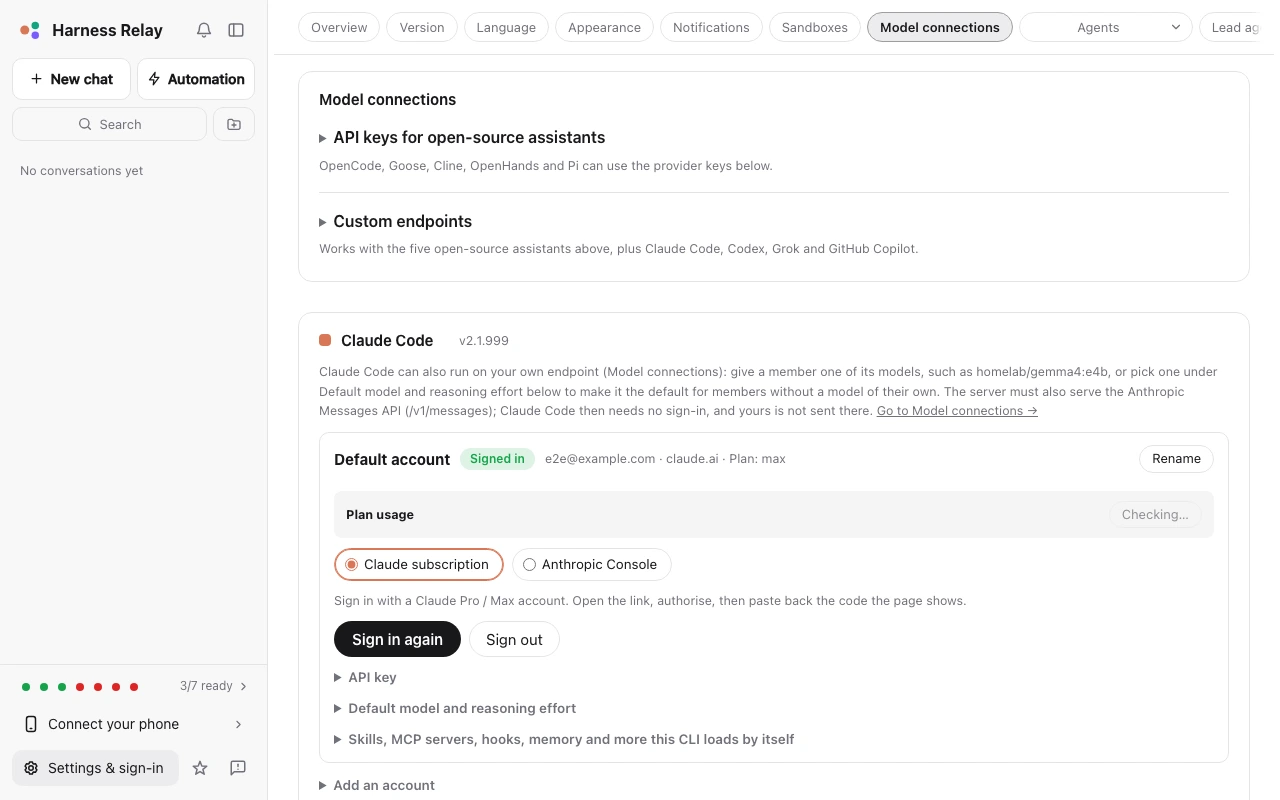
OpenCode, Goose, Cline, OpenHands and Pi have no sign-in. They run on the model backends you set up under Settings → Model connections.
- Expand API keys for open-source assistants to give these five assistants an OpenAI, Anthropic or xAI key. Paste the key and click Save. Your Claude subscription and Grok sign-in cannot be used here: Anthropic does not allow its subscription in other agents.
-
Custom endpoints lists its supported assistants even when collapsed. The five open-source assistants, plus Claude Code, Codex, Grok and GitHub Copilot, can use your own server. Expand this section to connect vLLM, Ollama, LM Studio or another OpenAI-compatible server such as llama.cpp.
Choose Add endpoint, give it a name and short ID (such as
homelab), and enter its base URL (for local Ollama,http://localhost:11434/v1) and optional key. Click Load models, select the IDs you want in the assistants’ menus, or use Enter model IDs manually to add an ID. Previously saved IDs stay selected. A name-only edit saves locally. When adding an endpoint or changing its URL, key or models, click Save to verify every selected or manually entered ID. Relay reads the catalog again and checks individual model details for IDs missing from the list or when the server does not support listing models. If the server offers neither the catalog nor any of the requested model records, Relay asks whether to save the IDs unverified. Declining keeps the editor open. Connection or access errors, mismatched IDs and unknown IDs on a server with working model metadata block the save and leave your edits in the form. These checks do not run a model.
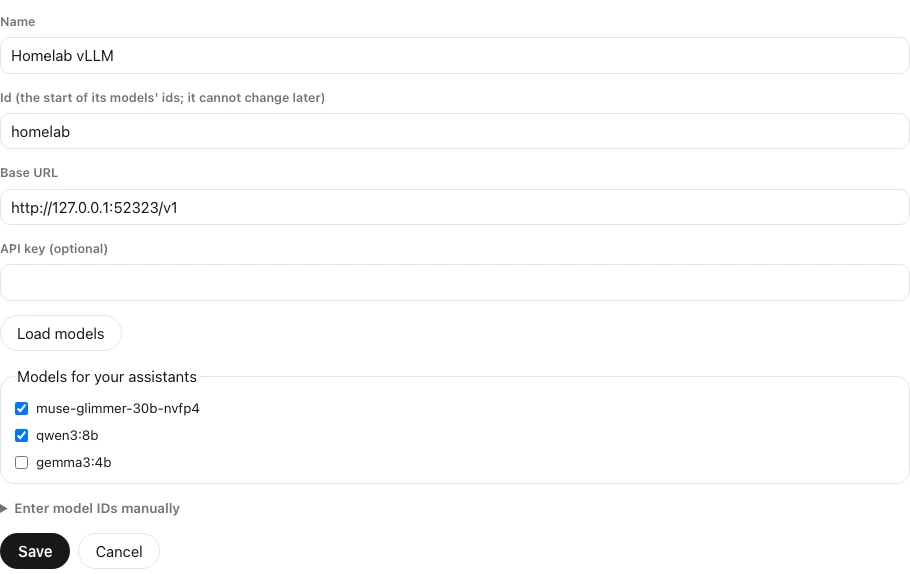
A member of an open-source agent then gets a model written as backend and name: openai/…,
anthropic/…, xai/…, or your endpoint's id and a model, such as
homelab/muse-glimmer-30b-nvfp4. Its card in Settings says Ready once the agent is installed and at least one
backend is set up.
Other agents can use your own models
Claude Code, Codex, Grok and Copilot can run on your custom endpoints too: their model menus list your endpoints' models after their own. Give a member one of them, and that agent works on your server instead of its maker's service. Your server must speak the API that agent uses; vLLM, Ollama, LM Studio and llama.cpp serve them all. Claude Code, Codex and Copilot then need no sign-in; Grok still needs its own. Cursor, Antigravity and Muse Code run on their own services only.
Context windows of your own models
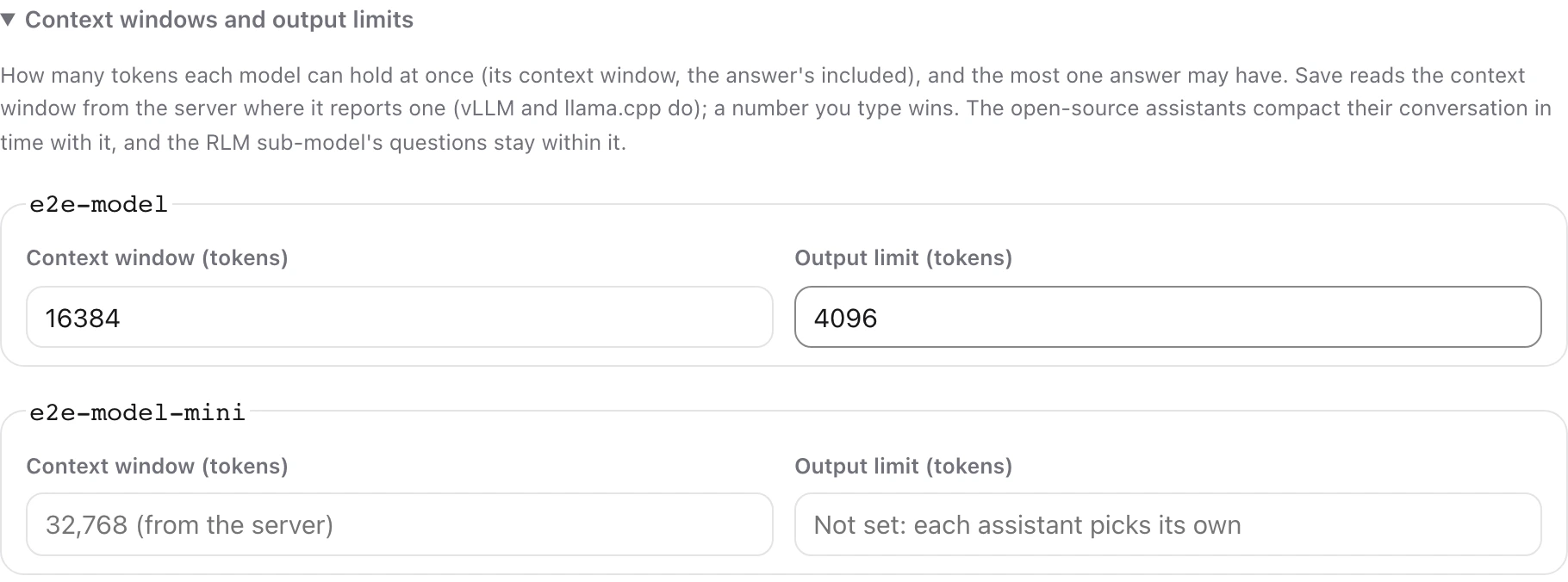
Under Context windows and output limits, each model you chose on an endpoint has the most tokens it can hold at once and the most one answer may have. Save reads the context window from the server where it reports one (vLLM and llama.cpp do); a number you type wins. The open-source agents then compact their conversation before a small model's window is full, and keep long tool output within it.
Accounts and plan usage
More than one account
Each agent can be signed in to several accounts at once, such as a work and a personal Claude subscription: open Add an account under the agent's accounts, name it and click Add an account. Each account signs in on its own, and has its own API key and default model. In a team, choose which account each member runs on with Account on its card; a member with none chosen uses the default account. Remove signs an extra account out and deletes it.
Cursor, Antigravity and Muse Code keep their sign-in in one place for your whole computer user, so their extra accounts take an API key instead (a Cursor API key, a Gemini API key, a Meta API key).
Plan usage
Once an account is signed in, its box shows Plan usage: how much of its plan is left, as the agent reports it, with a bar for each limit and when it starts over (Claude Code's 5-hour and weekly limits, say, or Copilot's premium requests this month). Harness Relay asks without sending a prompt, so checking uses nothing up. Check again asks anew. An account on an API key (Claude Code, Codex, Grok, Antigravity, Muse Code) has no plan limits: its provider bills the key by use, so see the balance in the provider's console. Copilot on a GitHub token shows that GitHub account's plan. For Cursor, the box names the plan only, and nothing for an account on a Cursor API key. A limit used up that the agent keeps running past, billed (credits, Claude Code's usage credits, Copilot's additional paid usage, Grok's pay-as-you-go, Antigravity's AI credits once Use AI Credits is on), says Plan limit reached and what it uses instead; the lead agent still staffs that account, but prefers others that fit as well, since each turn costs money.
Default models and the lead agent
Default model and reasoning effort
Each account's box has Default model and reasoning effort: what its members use when their own model is left on Default. Left on CLI default, the agent uses its own settings, as in a terminal. You can always give a single member another model in the team.
Choose the lead agent
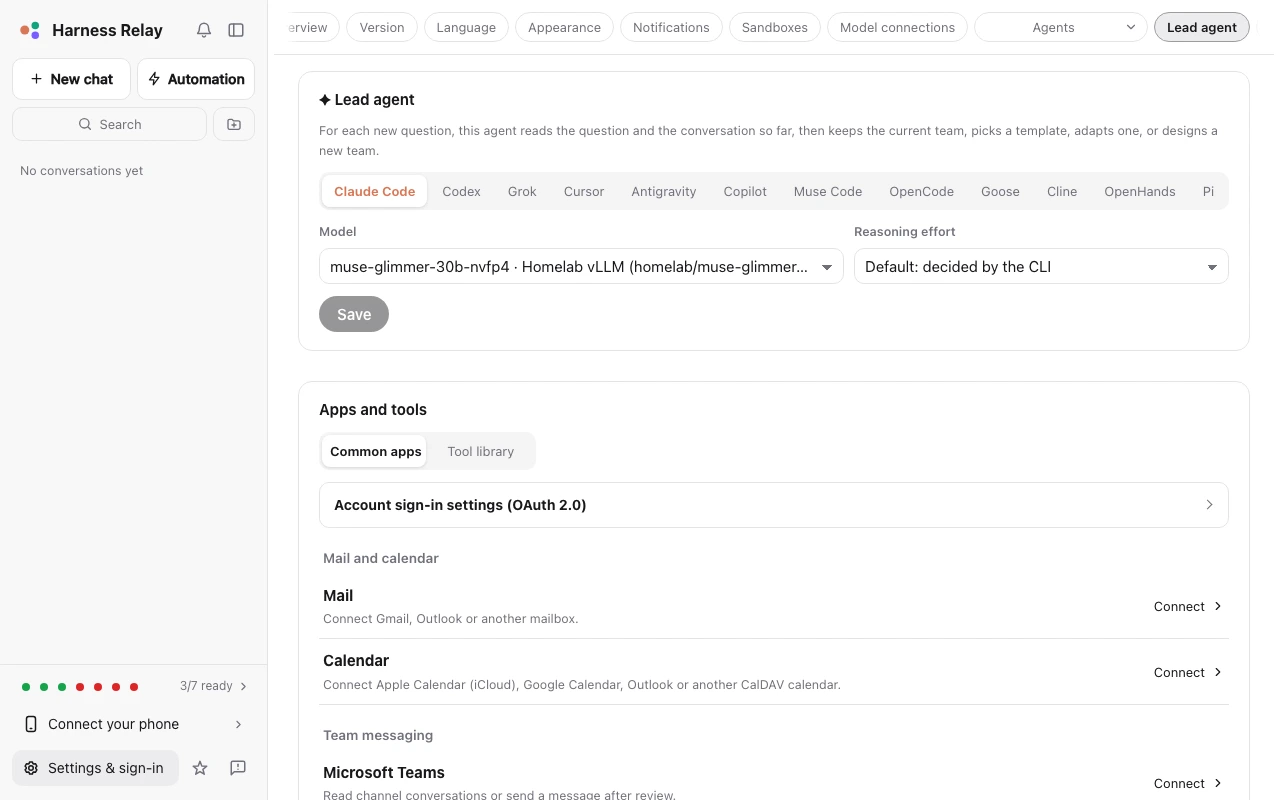
Lead agent in Settings picks the agent, and optionally its model and effort, that designs a team for each question, reviews the team's replies, names new chats and sorts them into your groups, and tidies the long-term memory while it is on. Choose one that is signed in, or an open-source agent with a model backend. A small, fast model is usually enough.
It also writes for you when you ask: a template, the team checks or an automation from a sentence, and suggestions to organize your groups. You review what it wrote, and nothing is saved until you save it. Name new chats, under it, is on by default: untick it to keep naming new chats after the first line of their first message.
Subagents and workflows
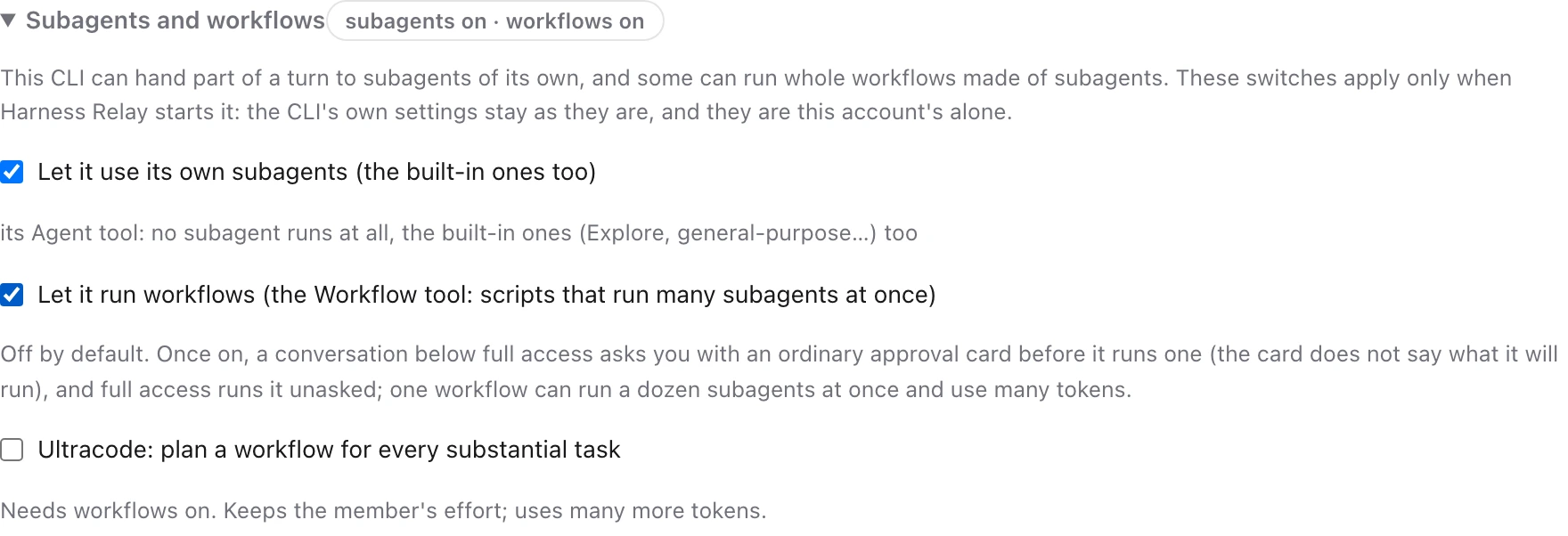
Most agents can hand part of a turn to subagents of their own, and Claude Code and Grok can run whole workflows of them. Each account's box has Subagents and workflows: its subagents are on by default, and Claude Code's and Grok's workflows, which can run a dozen subagents at once, are off until you turn them on. Ultracode has Claude Code plan a workflow for every substantial task. What a subagent does shows in the chat under the step that started it.
Below full access Harness Relay always turns off the subagents of Codex, Grok, OpenCode, OpenHands and Cline, which could otherwise act without asking or outside the protections of the chat. Cursor, Antigravity, Copilot and Muse Code have no switch for them, and the box says so.